Chat Input Chips
Agentlab extends the standard Langflow Chat Input component with a configurable list of chips. Chips render as interactive controls in the Karli Studio chat and let the user steer flow execution down a specific branch with a single tap.
There is no separate "Chip Input" component — chips are a feature of Chat Input. Configuring at least one chip causes a dedicated output to appear on the component for that chip.
Configuring Chips
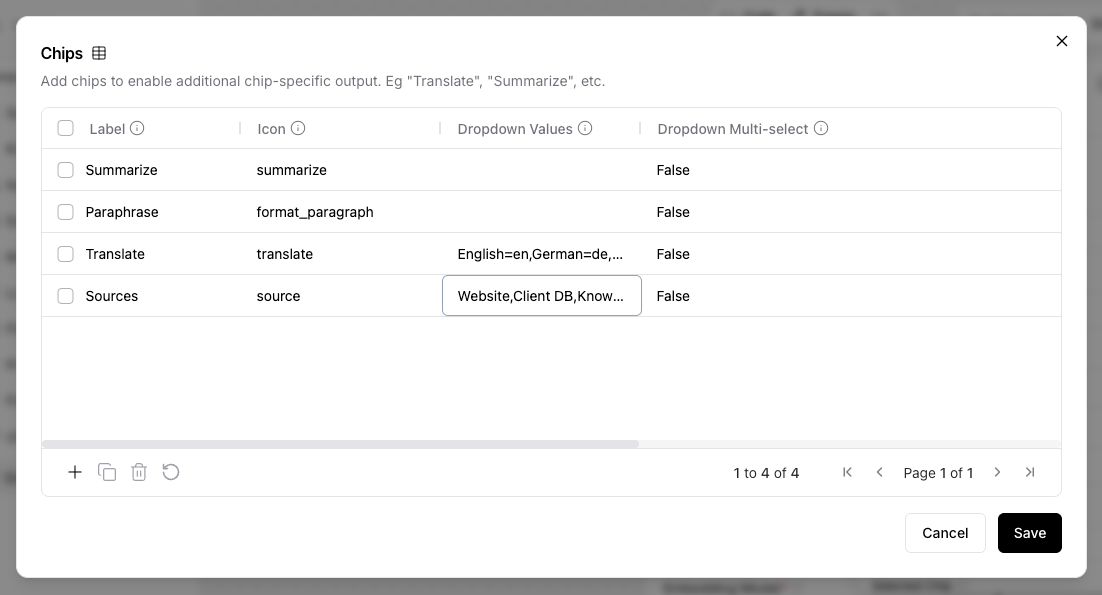
Open the Chat Input component's advanced settings and add rows to the Chips table:
| Column | Description |
|---|---|
| Label | The text shown on the chip in the chat. Also identifies the chip's output on the canvas. |
| Icon | A Material Icon name shown next to the label. |
| Dropdown Values | Optional. A comma-separated list of values for chips that present a choice (e.g. English,German,French). Use = to distinguish a label from its underlying value (e.g. English=en,German=de). Leave empty for a plain action chip. |
| Dropdown Multi-select | When Dropdown Values are set, allow the user to select more than one. |
The way each chip renders in the chat is deduced from the row — see Chip Rendering.
Output Routing
For each chip you configure, the component grows a Chip: <label> output. When a chip is selected:
- The matching
Chip: <label>output produces aDatawith the user's selection and message. - All other chip outputs and the regular
Chat Messageoutput are stopped, so only the branch the user picked executes.
When no chip is selected, the regular Chat Message output runs as usual and all chip outputs are stopped.
See Routing Behavior for details.