Upload Targets
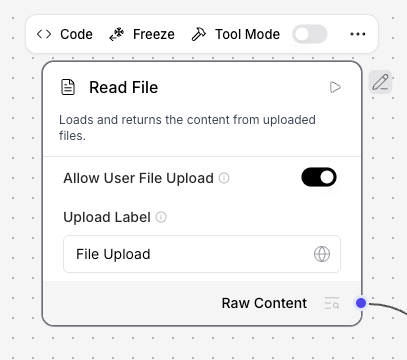
A Read File component with Allow User File Upload enabled becomes an Upload Target: a slot in the Karli Studio chat that lets the end user attach files which are then handed to that specific component when the flow runs.
A flow can contain multiple Upload Targets — Karli Studio will surface one upload control per target, distinguished by the target's label.
Enabling an Upload Target
In the Read File component's advanced settings, turn on Allow User File Upload, then configure how the upload should appear and be validated:
| Field | Description |
|---|---|
| Allow User File Upload | Turns the component into an Upload Target. When enabled, files are supplied by the user at chat time rather than at flow design time. |
| Upload Label | The label shown for this upload slot in the Karli Studio chat. Used to distinguish multiple Upload Targets in the same flow. Defaults to File Upload. |
| Upload Limit | Maximum number of files the user may attach. 0 means unlimited. Defaults to 1. |
| Allowed Upload Extensions | Comma-separated list of permitted file extensions (e.g. pdf,docx,png). Defaults to all extensions the component supports. |
When Allow User File Upload is on, the component does not need a file path configured at design time — the canvas-side Path field can be left empty.

Multiple Upload Targets in One Flow
If a flow contains several Read File components with Allow User File Upload enabled, each is exposed as a separate slot in the chat, identified by its Upload Label. Use distinct labels (e.g. Contract, Invoice) so the user can tell them apart.
Combining with Document Extraction
Upload Targets compose with the Document Extraction feature: an Upload Target whose extraction backend is set to karli will hand uploaded files to the KARLI extraction service instead of processing them locally.