Publishing Flows to Karli
Once a flow is ready, publish it to Karli Studio so end users can interact with it as an Agent. Publishing registers the flow with Karli, assigns access, and (optionally) places it on the Karli Studio navigation rail.
Publishing a Flow
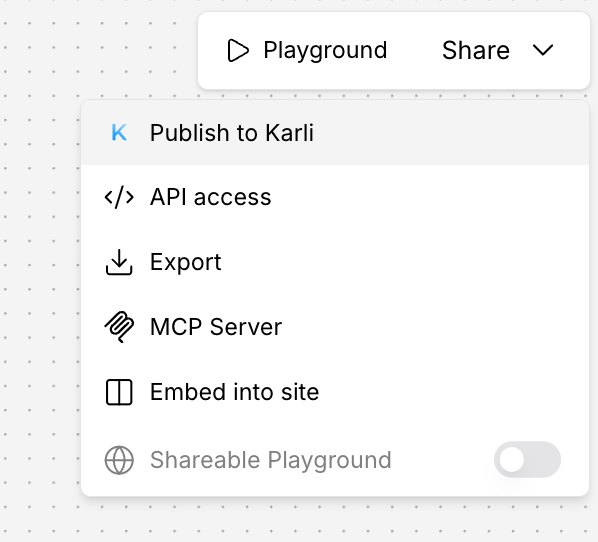
In the flow editor, open the Share dropdown in the top-right and choose Publish to Karli.
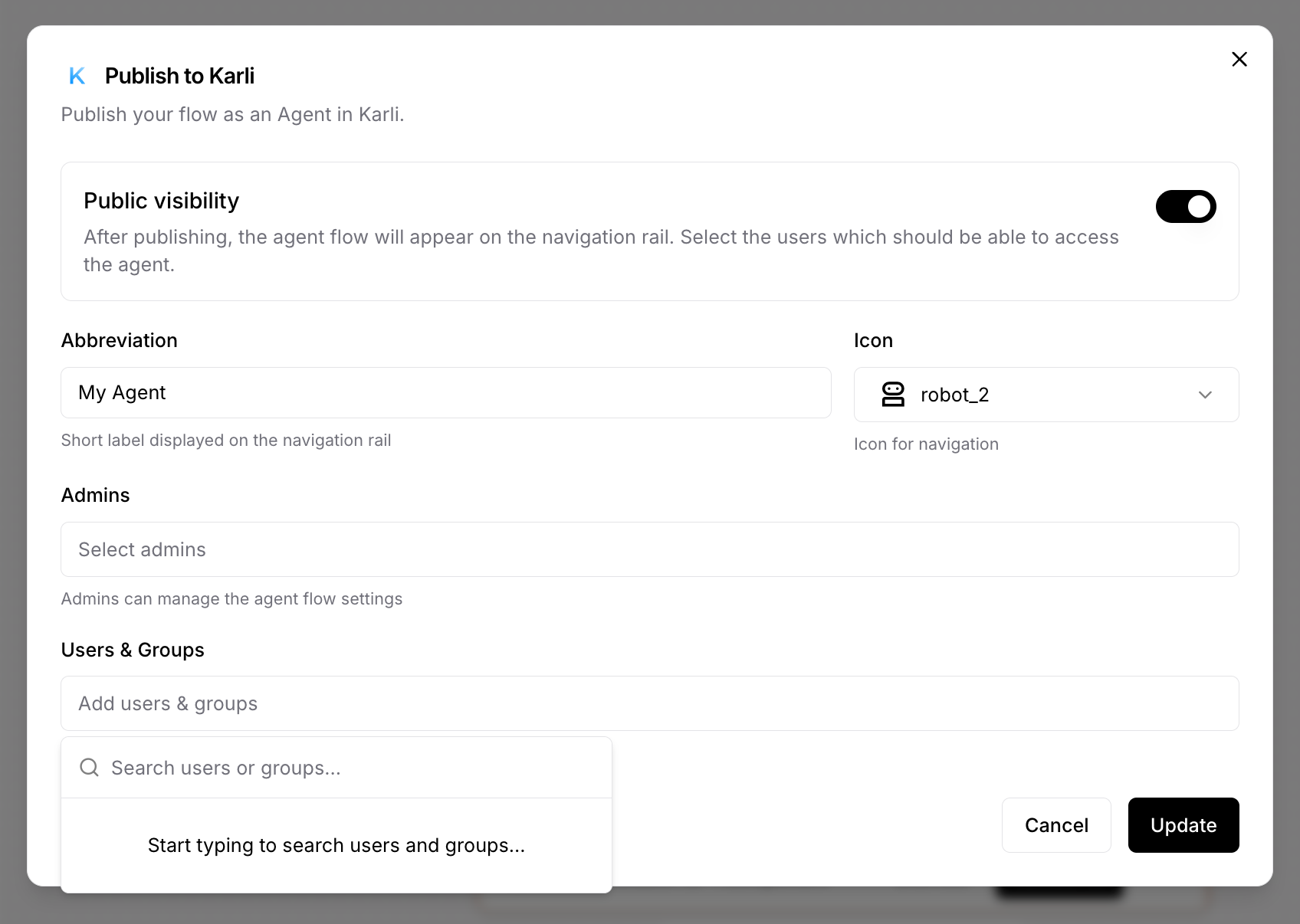
The publish modal opens. The first time you publish a flow, the button reads Publish; on subsequent opens it shows the existing settings and the button reads Update.
Modal Fields
Public visibility
Controls whether the agent appears on the Karli Studio navigation rail.
- On — the agent is shown on the navigation rail to the users and groups you assign below. Abbreviation and icon are required.
- Off — the agent is registered but hidden everywhere. Useful for parking an in-progress agent without exposing it to users.
Abbreviation
A short label (max 10 characters) shown on the Karli Studio navigation rail, e.g. CS for a Customer Service agent. This is not the agent's display name — the display name comes from the flow's name. To rename the agent, rename the flow in Agentlab, then reopen this modal and click Update.
Icon
The icon shown alongside the abbreviation on the navigation rail.
Admins
Users granted admin rights on the published agent. Admins can manage the agent's settings from within Karli Studio.
Users & Groups
The users and groups allowed to use the agent in Karli Studio. Only assigned users (plus admins) will see it on the navigation rail.
Updating a Published Agent
Two kinds of changes propagate differently:
- Flow behavior — anything you change on the canvas (components, prompts, connections, parameters) takes effect as soon as you save the flow. End users get the new behavior on their next conversation; no republishing needed.
- Agent metadata — public visibility, abbreviation, icon, admins, and users & groups. These only change after you reopen Share → Publish to Karli and click Update.
Renames are a special case of the second bucket: the agent's display name follows the flow's name, so rename the flow first, then click Update in the modal to push the new name to Karli.
Info
You do not need to republish after editing the flow. The Publish modal exists to manage how the agent appears in Karli Studio and who can use it — not to deploy flow changes.